 Digital Peax

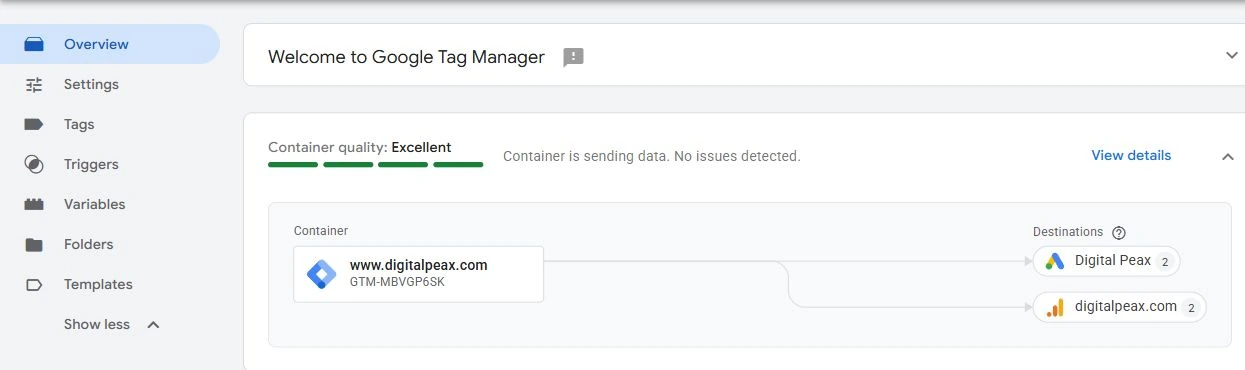
We migrated Digital Peax’s GA4 and Google Ads connections to destination tags, bringing both product connections and their shared settings into the GTM container.
A destination is the Google product receiving the data. In our setup, these were a GA4 web data stream and a Google Ads account. Google’s definition
1. Choose which Google tags to migrate
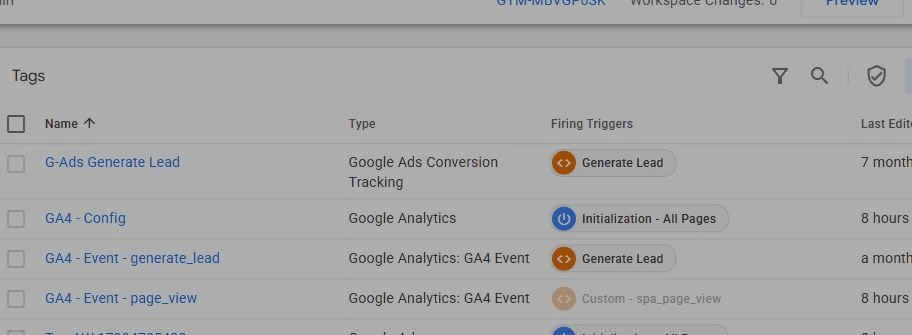
Identify the Google tags you want to turn into destination tags. At Digital Peax, we chose GA4 - Config and the Google tag connecting Google Ads.
2. Open migration from an existing destination
In the Overview map, we opened the existing GA4 destination and selected Get started. If your container displays the Optimize your Tag Manager container banner, you can also start through Review details.
Use the optimization flow to migrate existing connections. Add destination creates another connection.
3. Review tags, shared settings and access
We selected both Google tags. Their shared settings matched, so we carried those values across. If settings conflict, decide which values should apply before consolidating them.
Review external account access separately. It determines access to the GTM container from other Google product accounts; data connectivity and user access are separate choices.
Select Preview changes, review the differences, then choose Add to workspace. This stages the changes without publishing them. Google’s optimization workflow
4. Check Settings
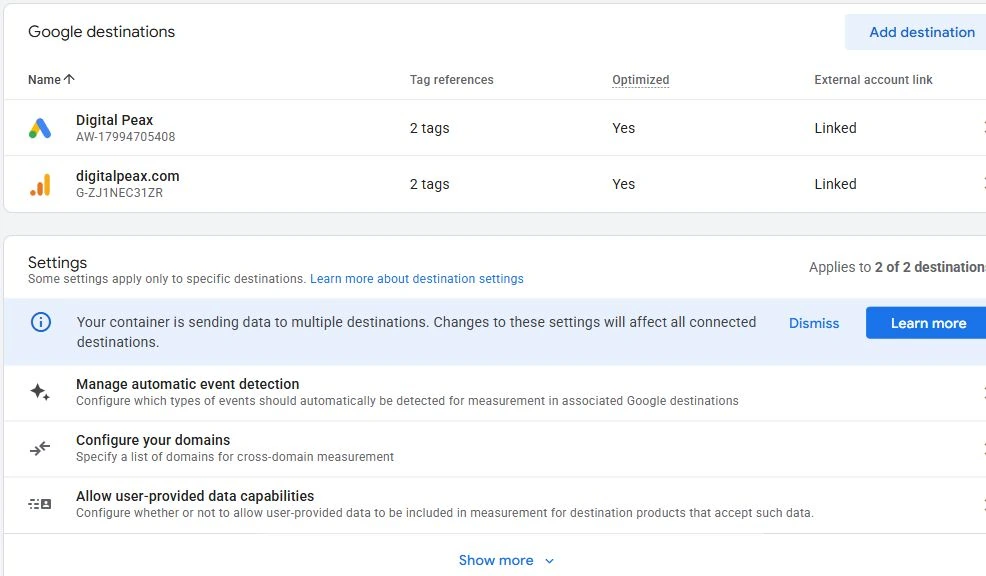
At Digital Peax, the tag types became Google Analytics and Google Ads. Our existing Manage automatic event detection and Allow user-provided data capabilities settings moved into the shared Settings section.
Before changing a shared setting, check which destinations it affects. Settings and destination management
5. Test and publish
Use Preview to connect the site to Tag Assistant. Check destination IDs, tag execution and outgoing events. For Digital Peax, we verified page_view and generate_lead.
We then published through Submit → Publish and Create Version. You can return to a previous container version, but permissions are not versioned and need a separate review. Preview guide · Publishing and versions
Which tag should a new setup use?
For GA4, follow Tags → New → Tag Configuration → Google Analytics → Google Analytics. For Google Ads, select Google Ads → Google Ads. Adding another event to an existing destination does not require another destination tag. GA4 setup · Google Ads setup
We can help with the migration
We can review your GTM setup with a free audit, then implement and test the migration for you. Get in touch with Digital Peax.