 Digital Peax
You write a prompt and get an image back in seconds. At first glance, it looks good. Then you notice the logo is different, the product is the wrong color, or a word is misspelled. You ask for a fix, and something you liked changes too.
Getting the image you want can take more than another prompt. The product photo, logo file, reference images and the way you describe changes all shape the result. Preparing these first helps you avoid fixing the same mistakes over and over.
Why doesn’t the image match what you had in mind?
When you say “Make an eye-catching ad that fits my brand!!!1”, you have a picture in your head. The tool can’t see it. You need to tell it which logo to use, which product details must stay the same and what you mean by “eye-catching”.
What you had in mind
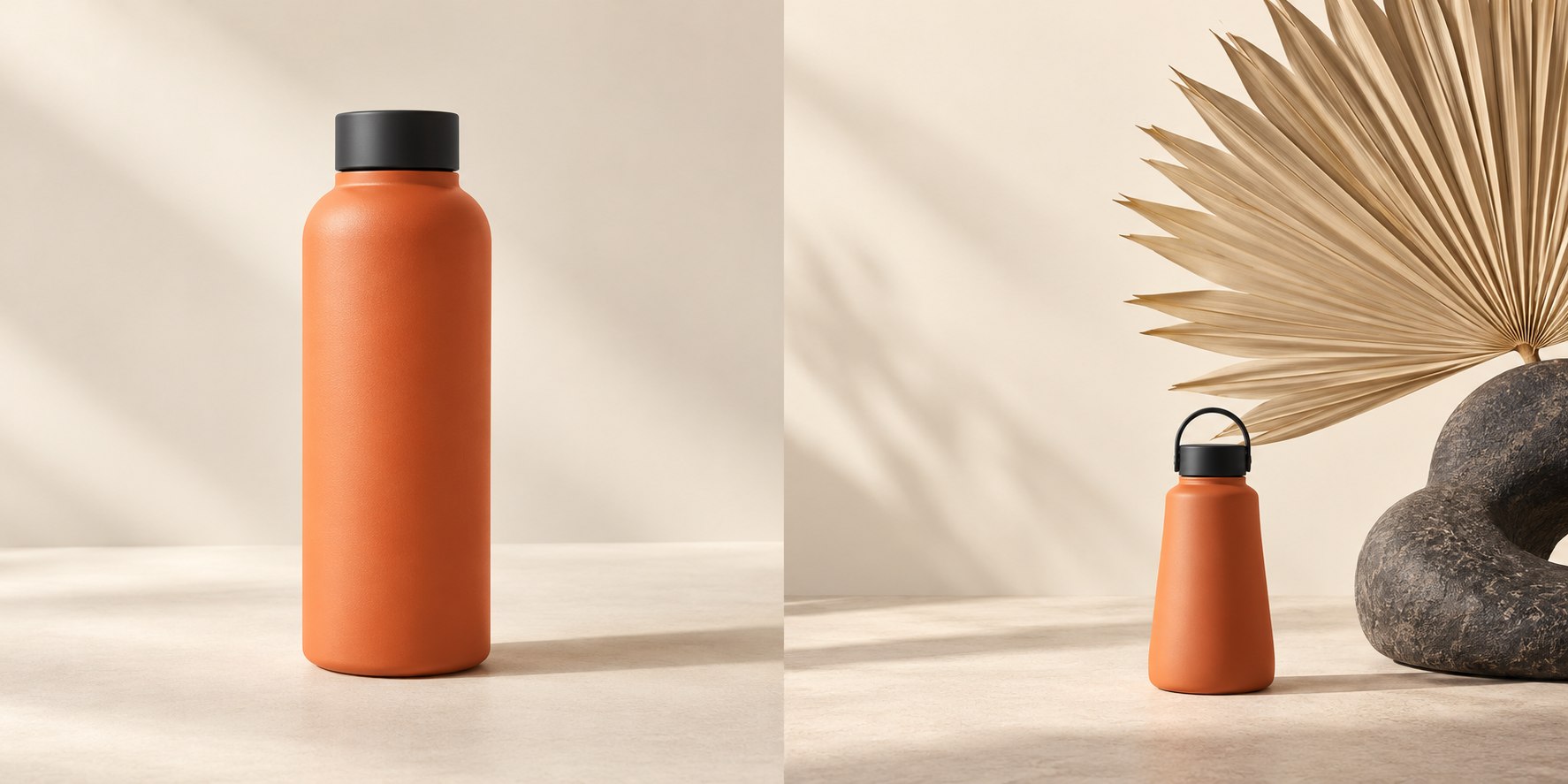
The product stands out. The background is simple.
What you got
The props take over. The product has changed.
By “a simple design”, you might mean an empty background with the product shown large. The result might give most of the space to props and leave the product tiny. Showing an example you like and saying “use this lighting and spacing, but keep the product large in the center” gives a clearer direction.
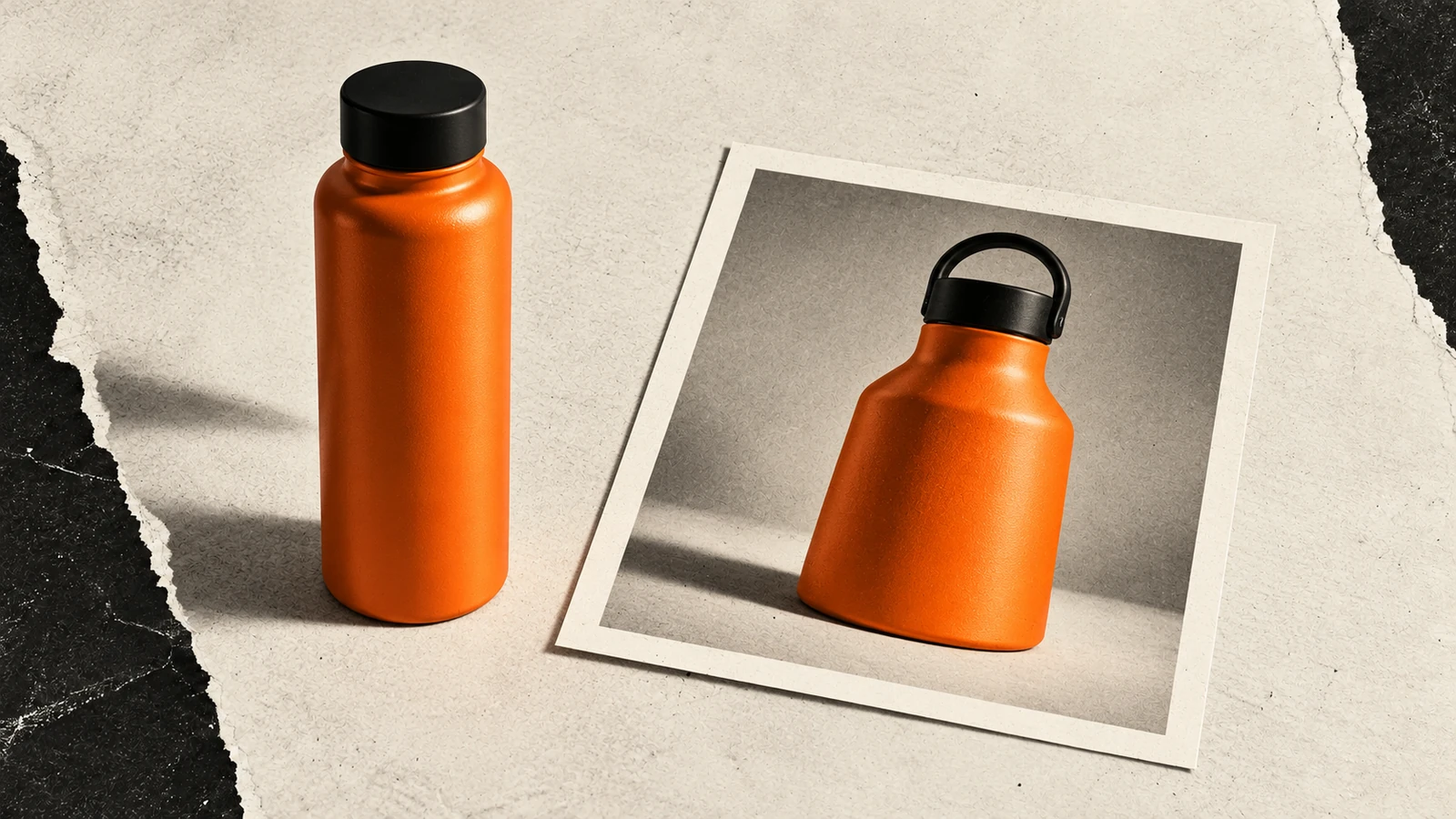
In this example, the bottle’s cap and body have changed too. Even a clear brief won’t prevent every mistake: the model can redraw a logo, alter a product detail or misspell the text. Adding “keep it exactly the same” to a prompt doesn’t guarantee the original file will be used unchanged. That’s why elements such as logos should be added from the original file.
When you generate each size as a separate image, those decisions are made again. You might like the square ad and get a completely different scene in the portrait version. Starting with one main image and adapting it to the other sizes helps keep the set consistent.
What should you prepare for a better result?
Have your logo, product image, colors, fonts, visual references and ad copy ready. Try adding them with the checklist below and see what each one changes in the banner.
Select an item and see what changes in the banner.
What can go wrong when a team works together?
You’ve built an agent that knows your brand and added your files to a dedicated project. A few things can still go wrong when several people work on the same campaign:
- People may be working with different information. Your agent might use the new logo while a teammate’s chat still has the old file. A rule you add to one agent may never reach the others.
- A fix may not carry over to the other images. You might update the price in the square ad while the portrait version still shows the old one. You have to keep track of which images have been updated.
- The latest approved image can get lost. If files are in one chat and client feedback is somewhere else, it gets harder to find the right version. When someone else takes over, you also have to explain the earlier decisions again.
How does Odaq make this easier?
We built Odaq Studio so the whole team can work with the same saved logos, colors and visual preferences. You don’t have to collect everything by hand. Give Odaq your website address, and its Brand Kit feature does the following:
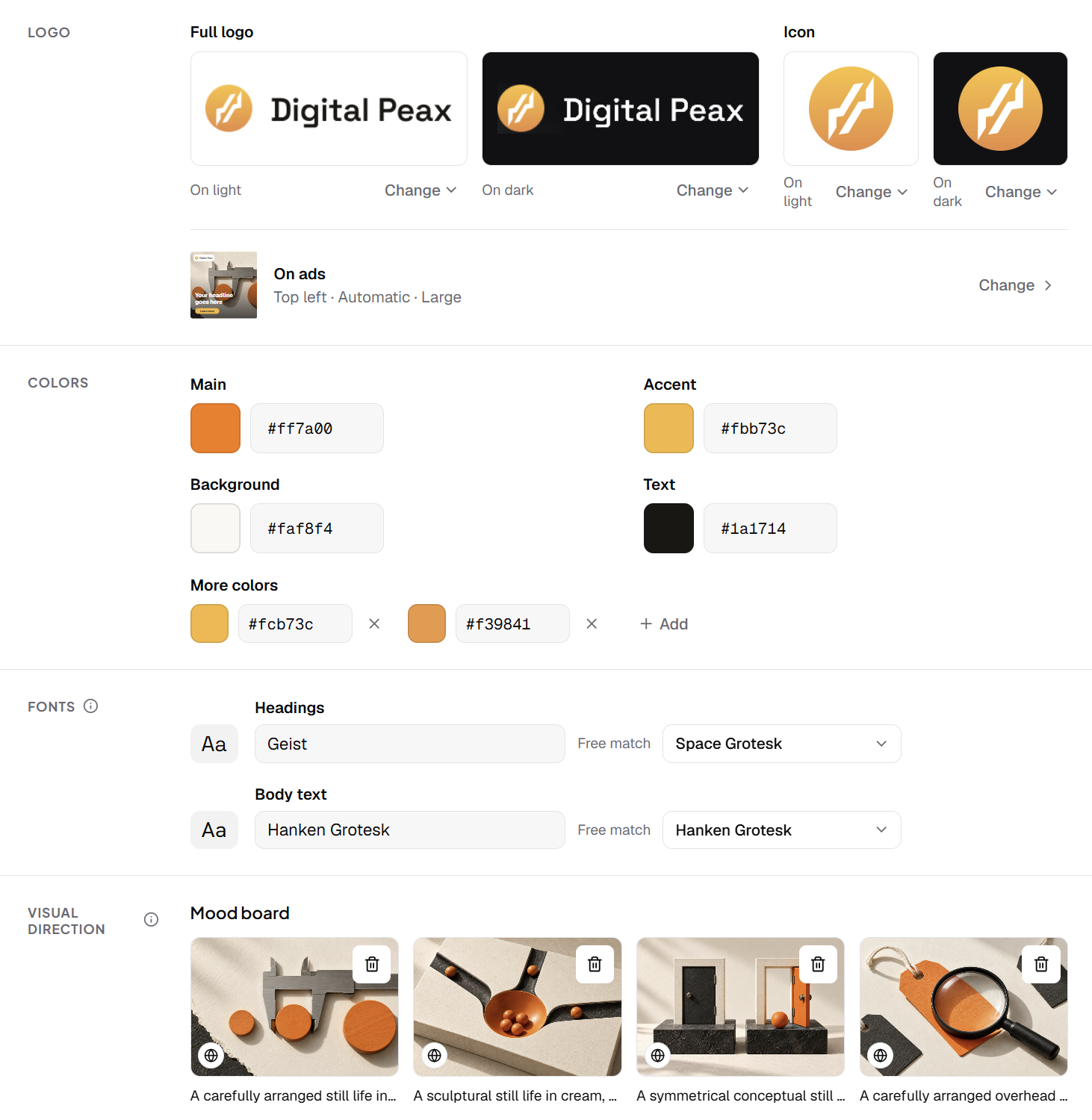
- Logo filesFinds and saves the logos and icons on your website.
- ColorsIdentifies your main, accent, background and text colors.
- FontsIdentifies the fonts used for headings and body text.
- Reference imagesFinds images on your site and suggests examples for you to choose from.
- Visual styleTurns your chosen examples into written guidance on lighting, color and layout.
- Shared brand detailsSaves what you approve for your team and Studio to use in the same project.
You review and approve what it finds. You can correct anything that’s wrong and add your own logos and reference images.
For a new ad, you provide the product image, final copy and sizes you need. Studio adds your original logo as a separate layer, sized and placed to suit the image. So your logo doesn’t depend on the AI’s mood that day.
Your images are organized into ad sets in a visual library. Each image has a version history: edits are saved as new versions, while earlier ones stay available. You can go back to any version and continue from there.
An ad set for Walk of Berlin
We used this workflow for Walk of Berlin’s Berlin-Uhr poster. It’s a digital poster that customers download and print themselves. The ad needed to show the design accurately and make it clear that no physical print or frame would be shipped.
First, we checked the brand’s logos, colors and fonts. We added three photos of Berlin as references. Odaq used these to identify visual preferences such as twilight and warm architectural lighting.
Then we added the poster’s print file and an image showing it in a room. We also supplied the final headline, price and “Frame not included” note. The price in this ad set was €6.90.
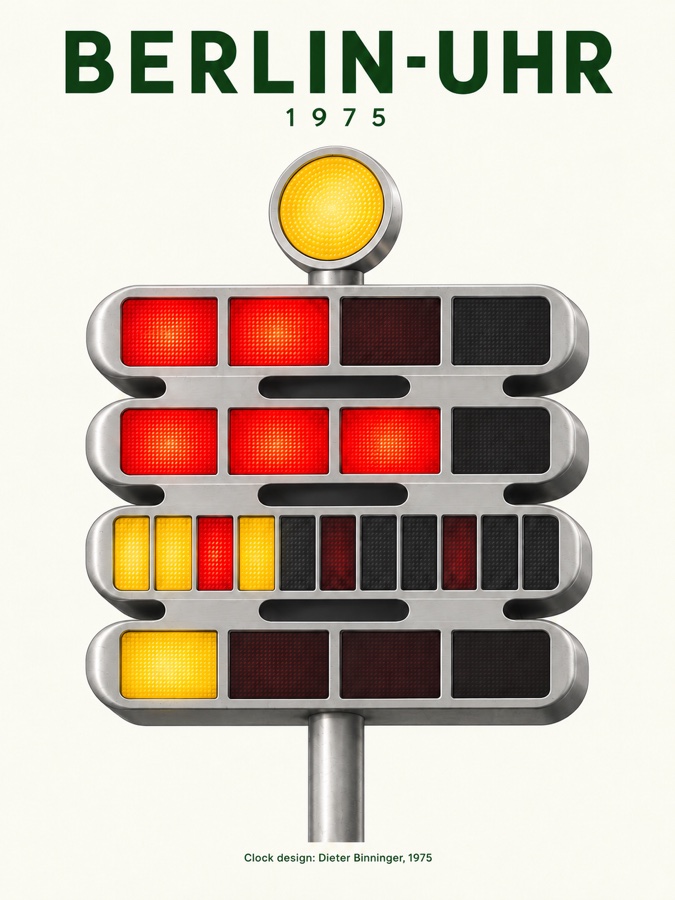
With these files ready, we created the square ad, then generated a new portrait variation in a couple of clicks. Both use the project’s saved logo, colors and ad copy, with a different scene and layout for each.
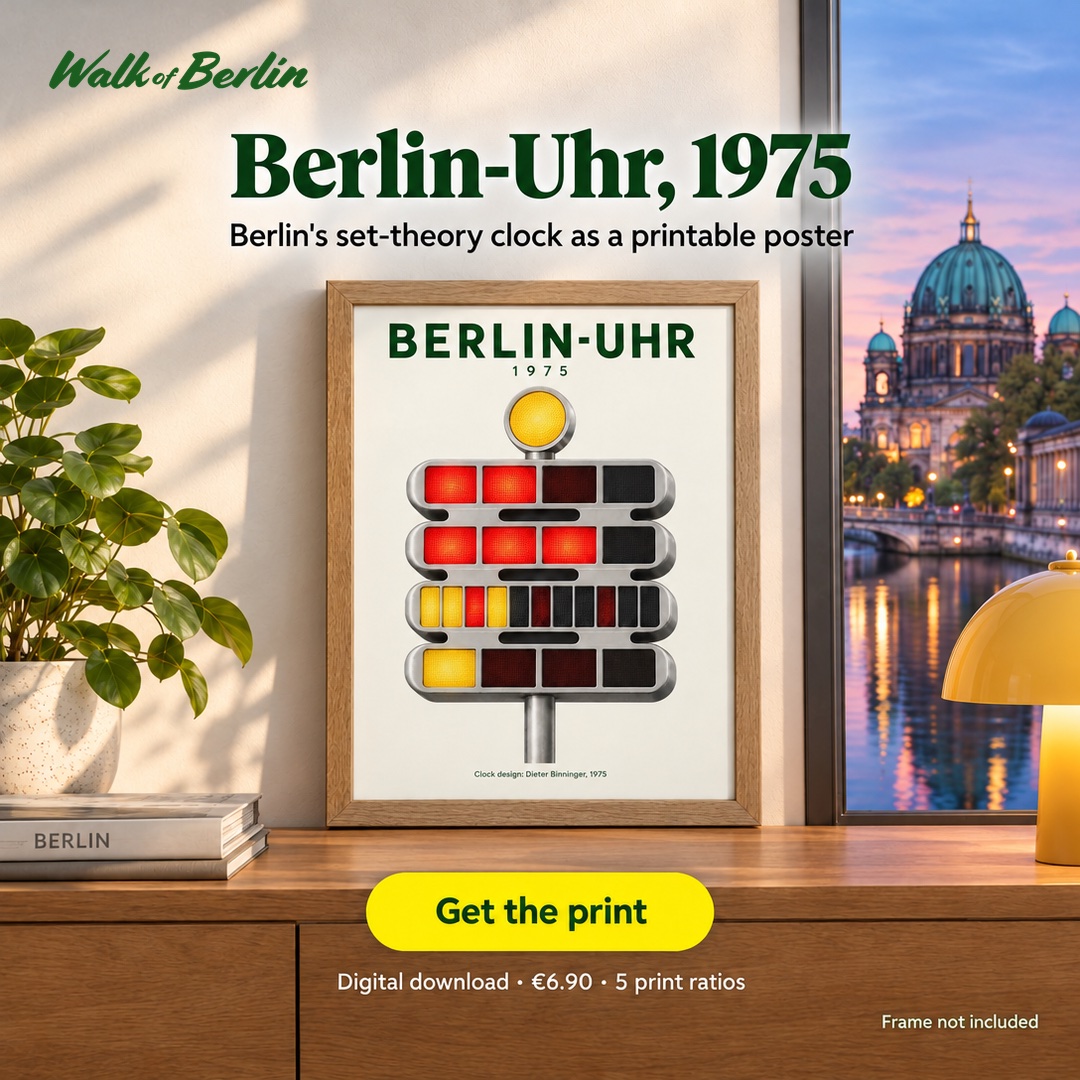
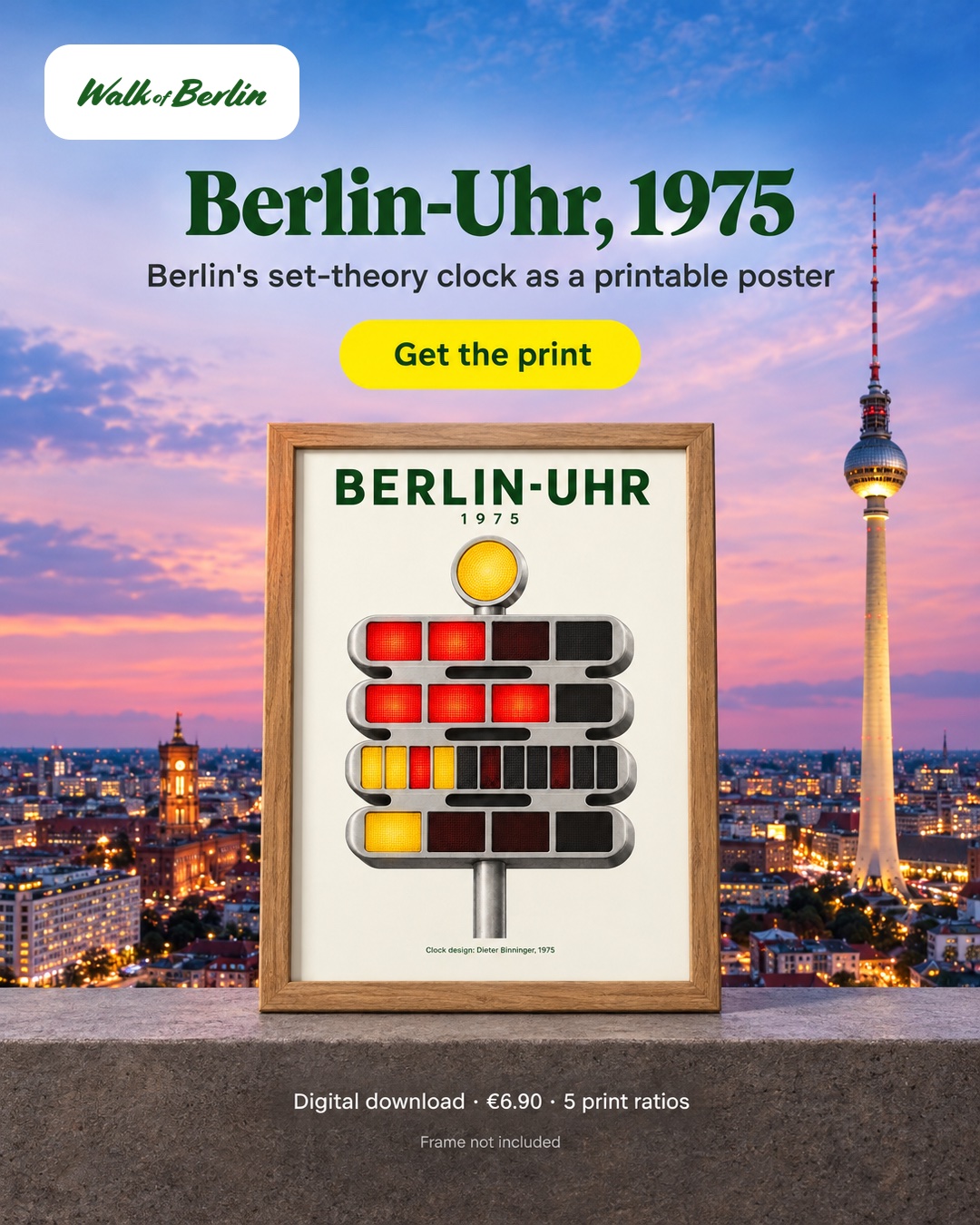
We can’t know in advance which image will perform best in an ad. Creating new variations quickly and easily lets us test different ideas. The results help us decide which ideas to develop further.
If you want your team to work this way, we can set up Odaq around your brand and plan a short, fun training session with the people who will use it.